Discord Notification Guide: A Comprehensive Summary on How to Receive Only Mentions

Why Discord Notification Overload is a Problem
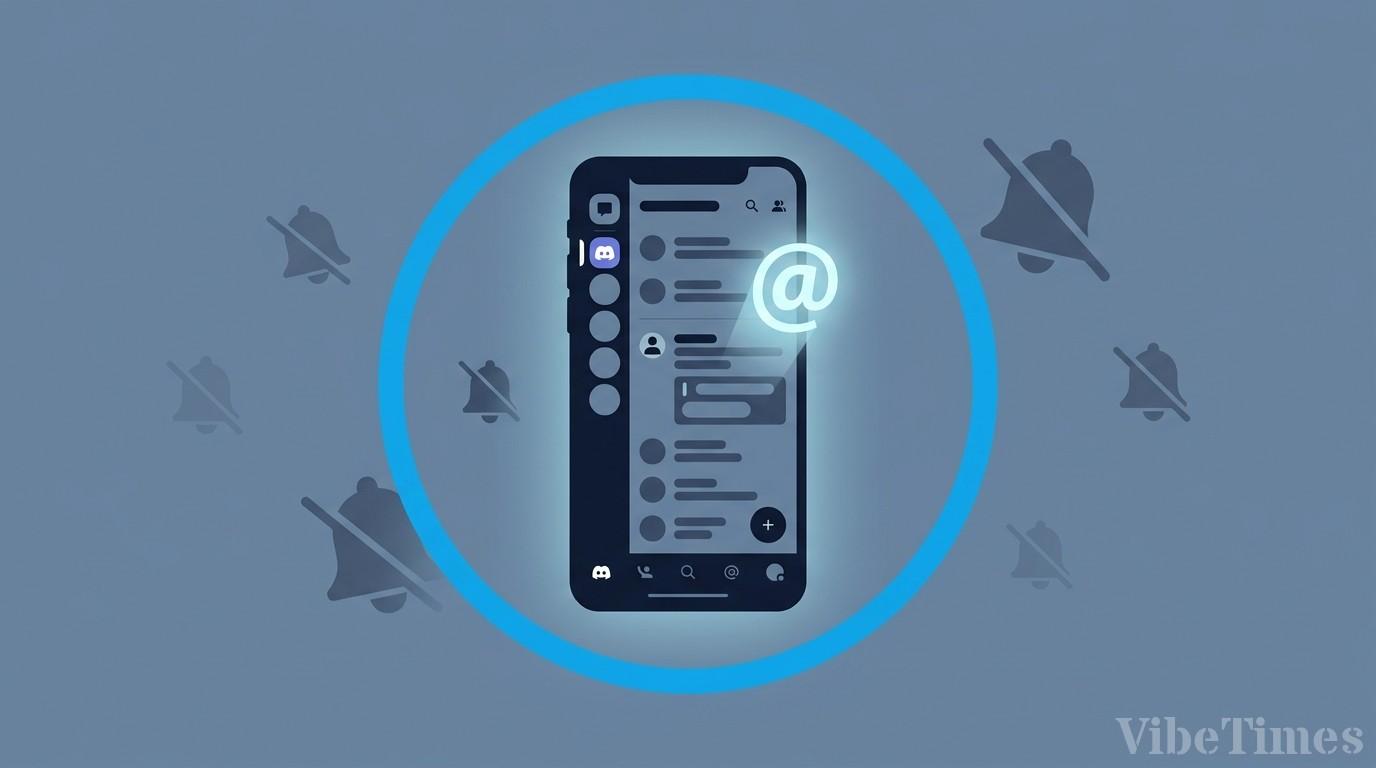
Joining just a single active Discord server can result in hundreds of notifications piling up daily. In servers with dozens of channels, such as game communities or study groups, default settings that notify for every message create a 'boy who cried wolf' effect, causing users to miss actually important mentions. This phenomenon is referred to as Information Overload.
The solution is simple: change your server settings to receive notifications only when you are directly called. Altering these settings takes less than a minute but significantly reduces battery drain and stress while improving focus on work or gaming.
2023–2024 UI Changes
In the past, users had to locate specific items within a long list under Settings > Notifications. However, following the major UI updates from the second half of 2023 through 2024, adjustments can now be made simply via toggle switches by right-clicking the server name or accessing the 'Notifications' tab within Server Settings. Previously ambiguous 'Message Notifications' items are now clearly distinguished between 'All Messages' and 'Mentions.'
How to Receive Only Mentions for an Entire Server
5-Step Basic Procedure
The most recommended method is to apply a batch setting at the server level. The procedure is as follows. Locate the target server in the server list on the left side of Discord. Click the gear icon next to the server name or right-click the server name to enter Server Settings. Click the 'Notifications' tab in the left menu. Select 'Mentions & Replies' from the dropdown menu for the 'Notification Override' (or 'All Messages') section, and you are done.
Additionally, if administrator announcements (@everyone) are bothersome, simply toggle on the 'Suppress @everyone Mentions' switch on the same screen. It is advisable to set exception handling for announcement channels separately.
How to Make Exceptions for Announcement Channels
If you change the entire server to 'Mentions Only,' even announcement channels will stop sending notifications. In this case, use channel-specific exception settings. Open the channel you wish to receive notifications from and click the gear icon at the top right of the channel name. Under 'Notification Overrides' at the bottom left, click 'Add' to select yourself, then change the dropdown to 'All Messages' to maintain full notifications for that channel only.
Comparative Analysis of 4 Notification Options
Choosing the Option That Fits Your Situation
Discord notifications are divided into four levels. 'All Messages' triggers a notification whenever a post is made; while suitable for operators or small friend groups, it causes severe battery drain. 'Mentions & Replies' reacts only to @mentions and replies to your messages, making it the most recommended setting for general users.
'Only Mentions' triggers notifications solely for direct mentions (@name), excluding replies. This is suitable for streamers or creators who need rest, though it may lead to delayed communication. Finally, 'Notification Off' mutes the server entirely, meaning no notifications appear even for mentions, displaying only a badge.
3 Practical Tips Easily Missed
Temporary Mute and Device-Specific Settings
If you are hesitant to change settings permanently, right-click the bell icon in the top right and select 'Mute for...'. This allows you to silence notifications for 30 minutes up to 1 day, which is useful for focus mode. A popular combination is turning off notifications on PC while setting mobile apps to 'Only Mentions,' allowing you to check only important contacts while out. Adjustments per server are possible in the mobile app under Settings > Notifications.
Beware of the @Role Mention Trap
Even if set to 'Only Mentions,' notifications will ring if a Role you belong to is mentioned. If notifications for specific roles are frequent, you must check 'Ignore @role Mentions' in the role settings. If you are a server administrator, you can also adjust mention permissions for that role in Server Settings > Roles > General. Without knowing this trap, you may be unable to identify why notifications continue to pile up despite changing your settings.
Outlook and Summary
As demand for digital well-being grows, notification control features are likely to become even more granular. The immediate action to take is clear. Go to Server Settings > Notifications, select 'Mentions & Replies,' create exceptions for announcement channels, and check to ignore role mentions. With just these three steps, you can filter out hundreds of daily noises and keep only the sounds that call for you.